Automated Excel Engineering with openpyxl
Workbooks built by code: styled, formula-driven, and interactive — delivered in seconds, identical every quarter.
Lesson 7 · OverviewBy the end of this lesson you can…
- Decide when to deliver a DataFrame export and when to deliver a live spreadsheet
- Create workbooks, sheets, column widths, frozen panes, and hide gridlines
- Style cells with
Font,PatternFill,Alignment, andBorder - Write live formulas —
SUMIFS,VLOOKUP,IF,IFERROR— and named ranges - Build a parameter block that drives an entire sheet
- Test a generated workbook’s formulas automatically
Companion notebook: lesson-07-excel-openpyxl.ipynb — worked examples and self-checking exercises.
JudgmentDataFrame export or live spreadsheet?
Static export (df.to_excel) | Live, formula-driven workbook | |
|---|---|---|
| Contents | values only | values + formulas + inputs |
| Recipient can… | read, filter, sort | change assumptions and watch results update |
| Best for | data extracts, audit trails, large tables | underwriting tools, rate indications, sensitivity panels |
| Risk | stale copies multiply | formula errors, broken references |
| Build with | pandas in one line | openpyxl, cell by cell |
The underwriter doesn’t want Python — they want to type a target loss ratio and see which segments need a rate increase. Code builds the tool; Excel is the interface. The heavy lifting (joins, exposure, spatial enrichment) stays in Python.
Workbooks by Code
Sheets, cells, layout, and style.
BasicsWorkbooks, sheets, cells
from openpyxl import Workbook

wb = Workbook()
data = wb.active                    # the default first sheet
data.title = "Data"
panel = wb.create_sheet("Panel", 0) # insert as first sheet

panel["B2"] = "Auto Claims Underwriting Panel"   # by address
panel.cell(row=6, column=3, value=0.68)           # by position

for r, row in enumerate(seg.itertuples(index=False), start=2):
    for c, value in enumerate(row, start=1):
        data.cell(row=r, column=c, value=value)

panel.sheet_view.showGridLines = False
panel.freeze_panes = "D14"          # rows above 14, cols left of D
panel.column_dimensions["B"].width = 24
panel.sheet_properties.tabColor = "0E6B6B"
wb.save("output/underwriting_panel.xlsx")- Rows and columns are 1-based — unlike pandas
ws["B2"]andws.cell(row, column)are the same cell- Layout properties live on the sheet: gridlines, freeze panes, widths, tab color
For plain data sheets, df.to_excel(writer, sheet_name="Data", index=False) inside a pd.ExcelWriter(…, engine="openpyxl") is quicker — then open the same workbook with openpyxl to style it.
StylingFonts, fills, alignment, borders
from openpyxl.styles import Alignment, Border, Font, PatternFill, Side

# Define the corporate palette ONCE
TEAL, AMBER, INK = "0E6B6B", "C26A1B", "1B2330"
HEADER = Font(bold=True, color="FFFFFF")
HEADER_FILL = PatternFill("solid", fgColor=TEAL)
INPUT_FILL = PatternFill("solid", fgColor="F8E7D4")
THIN = Side(style="thin", color="E2DDD0")
BOX = Border(left=THIN, right=THIN, top=THIN, bottom=THIN)

def style_header(ws, row, first_col, labels):
    for i, label in enumerate(labels):
        c = ws.cell(row=row, column=first_col + i, value=label)
        c.font, c.fill, c.border = HEADER, HEADER_FILL, BOX
        c.alignment = Alignment(horizontal="center",
                                vertical="center", wrap_text=True)

ws["H14"].number_format = "0.0%"
ws["M14"].number_format = "+0.0%;-0.0%"
ws["F14"].number_format = "#,##0"- Styles are small objects; assign them to
cell.font,cell.fill, … - Colors are hex strings without
# - Number formats are Excel’s own codes: the value stays a number, only its display changes
- Write a helper for anything you style more than twice
A consistent visual language — teal headers, amber input cells — tells a user what to touch and what not to, without a manual.
Live Formulas
Cells that recalculate when the user changes something.
FormulasFormulas are just strings
r = 14
ws[f"D{r}"] = ("=SUMIFS(Data!$C$2:$C$19,"
               "Data!$A$2:$A$19,$B14,"
               "Data!$B$2:$B$19,$C14)")      # car years
ws[f"H{r}"] = f'=IFERROR(G{r}/F{r},"n/a")'  # loss ratio
ws[f"L{r}"] = f"=VLOOKUP(B{r},territory_loads,2,FALSE)"
ws["J7"] = '=COUNTIF($H$14:$H$31,">"&target_lr)'
openpyxl never calculates. It writes the formula text; Excel computes it when the file opens. Reading the file back with load_workbook(…, data_only=True) gives None for every formula cell until Excel (or LibreOffice) has saved it.
| Formula | Job in the panel |
|---|---|
SUMIFS | pull segment totals from the Data sheet |
VLOOKUP | find each territory’s current load |
IFERROR | show “n/a” instead of #DIV/0! |
IF / MIN / MAX | cap proposed changes |
COUNTIF, SUMPRODUCT | KPI cards |
Use English function names and commas, as in the US Excel UI. openpyxl writes the file format, which is locale-independent.
FormulasNamed ranges and division-by-zero traps
from openpyxl.workbook.defined_name import DefinedName

wb.defined_names["target_lr"] = DefinedName(
    "target_lr", attr_text="Panel!$C$6")
wb.defined_names["territory_loads"] = DefinedName(
    "territory_loads", attr_text="Panel!$E$7:$F$9")

# Trended loss ratio → indicated change → credibility → cap
ws["I14"] = '=IFERROR(H14*(1+trend)^trend_years,"n/a")'
ws["J14"] = "=IFERROR(I14/target_lr-1,0)"
ws["K14"] = "=MIN(1,SQRT(E14/full_cred))"
ws["M14"] = "=MAX(-max_change,MIN(max_change,K14*J14))"=I14/target_lr-1reads like the actuarial formula;=I14/$C$6-1doesn’t- Named cells survive rows being inserted above them
- Every division needs a plan for a zero denominator: an empty segment must show “n/a”, not
#DIV/0!spreading through every total
The chain is a standard indication: trend the experience loss ratio to the future period, compare with the target, weight by credibility Z = min(1, √(claims ÷ 1,082)), then cap the change.
Interactive Panels
Parameters in, answers out.
Sensitivity panelInputs, guard-rails, highlights
from openpyxl.formatting.rule import CellIsRule
from openpyxl.worksheet.datavalidation import DataValidation

# Only accept sensible targets
dv = DataValidation(type="decimal", operator="between",
                    formula1="0.3", formula2="1.2",
                    showErrorMessage=True,
                    error="Enter a loss ratio between 30% and 120%.")
ws.add_data_validation(dv)
dv.add("C6")

# Red fill where a segment runs above target
ws.conditional_formatting.add("H14:H31",
    CellIsRule(operator="greaterThan", formula=["target_lr"],
               fill=PatternFill("solid", fgColor="F6DCD8")))

# A KPI card: merged cells, big number
ws.merge_cells("H7:H9")
ws["H7"] = "=SUM($G$14:$G$31)/SUM($F$14:$F$31)"
ws["H7"].font = Font(size=18, bold=True, color=TEAL)- Data validation stops impossible inputs at the keyboard
- Conditional formatting re-evaluates live — change the target and the red cells move
- KPI cards: merged cells, large font, formula inside
- Charts (
openpyxl.chart.BarChart) reference cell ranges, so they update too
Keep inputs together in one clearly colored block. Scattered input cells are how spreadsheet models go wrong.
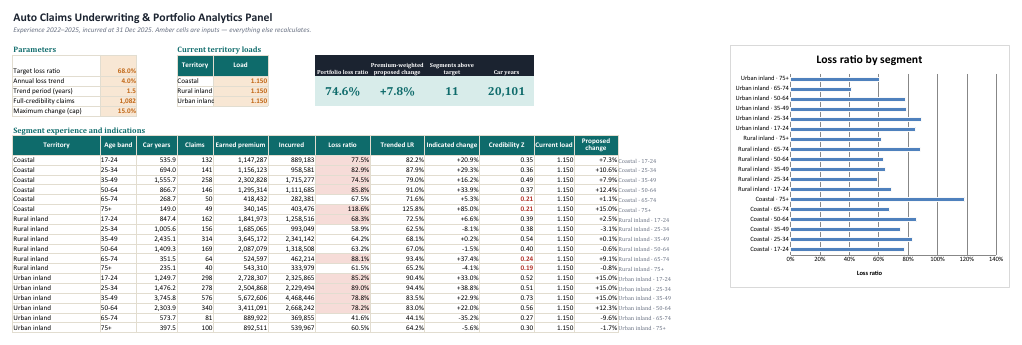
ResultThe Auto Claims Underwriting & Portfolio Analytics Panel
TestingProve the formulas work — automatically
# Recalculate headlessly (LibreOffice is free)
soffice --headless --calc --convert-to xlsx \
        --outdir recalc output/underwriting_panel.xlsx
from openpyxl import load_workbook
ws = load_workbook("recalc/underwriting_panel.xlsx",
data_only=True)["Panel"]
ws["H7"].value # 0.74561... portfolio loss ratio
ws["K7"].value # 20100.94 car years
abt["incurred"].sum() / abt["earned_premium"].sum()
# 0.74561... ✓ matches pandasChange an input, recalculate, compare:
| Target LR | Segments above target | Proposed change |
|---|---|---|
| 68% | 11 | +7.8% |
| 75% | 9 | +3.3% |
A check like this catches the classic bug: KPI formulas pointing one column to the left. The file opens fine — the numbers are just wrong.
Actuarial Lab · 90 minBuild the underwriting panel
- From the Lesson 6 enriched ABT, build a segment table: territory × age band → car years, claims, incurred, earned premium (18 rows)
- Write it to a Data sheet as values
- On a Panel sheet: the amber parameter block with named cells, and a territory-load lookup table
- The segment table with
SUMIFS, loss ratio, trended LR, indicated change, credibility,VLOOKUPload, capped proposal - Four KPI cards, conditional formatting, data validation, a chart
- Recalculate headlessly and check against pandas
Answer key (defaults)
| Portfolio loss ratio | 74.6% |
| Premium-weighted proposed change | +7.8% |
| Segments above target | 11 of 18 |
| Car years | 20,101 |
| Coastal 75+ loss ratio | 118.6% |
| Urban inland 35–49 credibility Z | 0.73 |
Lab · StretchMake it production-grade
Proposed loads
Add a territory-level table that rolls segment proposals up into new territory loads, premium-weighted.
Protection
Lock every cell except the inputs: ws.protection.sheet = True and cell.protection = Protection(locked=False) on inputs.
A test
A pytest that builds the panel, recalculates it with LibreOffice, and asserts the four KPI values.
Keep the calculation of experience in Python and only the what-if layer in Excel. If the spreadsheet ever disagrees with the pandas numbers, the pandas numbers win — and your test tells you immediately.
RecapLesson 7 checklist
- I can justify a static export vs. a live workbook
- I build sheets with widths, frozen panes, and no gridlines
- I style from palette constants and helper functions
- I use Excel number formats, not rounded values
- I write
SUMIFS,VLOOKUP,IFERRORformulas and named ranges - I guard every division against zero
- My panel has inputs, KPI cards, conditional formats, validation, and a chart
- I verify generated formulas by headless recalculation
Capstone: An End-to-End Rating Engine & Report
One command: database dumps in, an executive Excel report and a Reveal.js deck out.